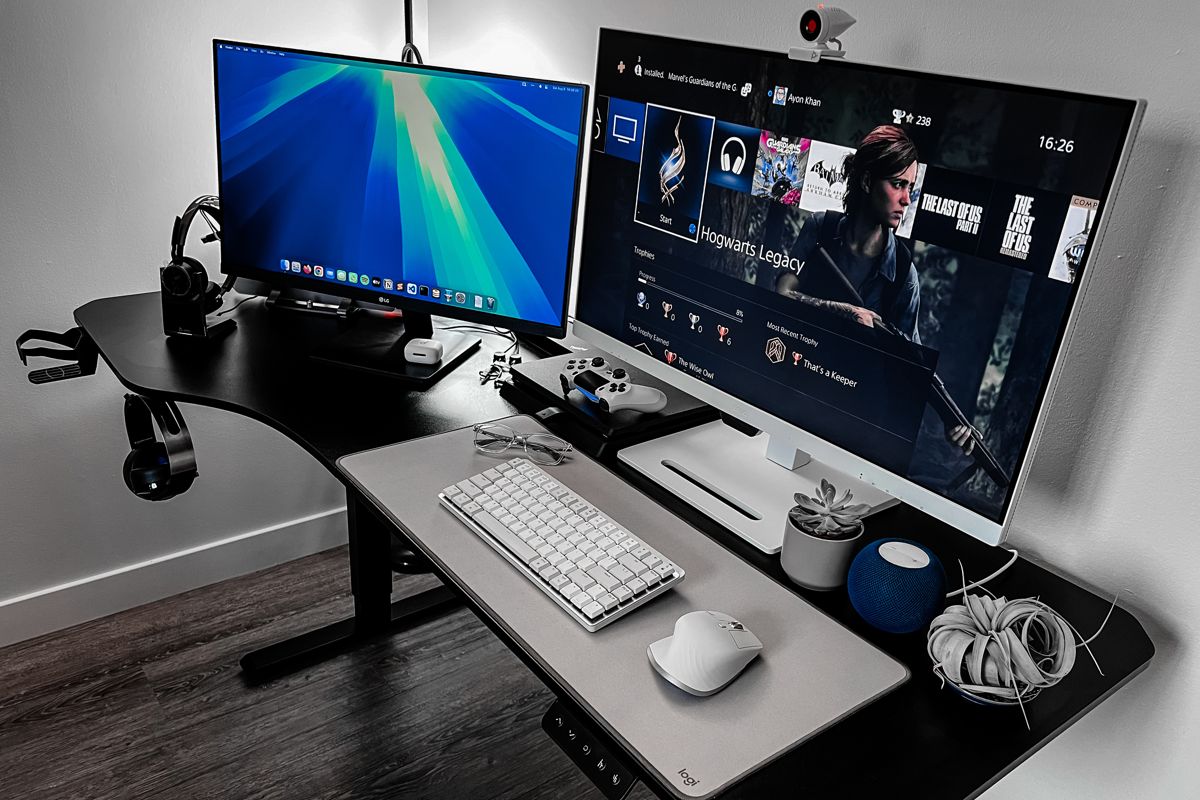
This post has been in draft for more than a year. I wrote it in 2025, right after I finished putting my desk together, and then never got around to publishing it.
The setup is built around one idea: switching between my work laptop and my personal MacBook without unplugging anything. I wrote this mostly to document how it all came together, but if you also share one desk between two laptops, some of it might help.
A few things have changed since 2025, so I’ve added those at the end.
Why I Built This Setup
I work from home two weeks every month, so having a comfortable space to work in matters a lot.
When I moved into this place last year, I bought a standing desk and an office chair. But I hadn’t really thought through how I’d use the desk with two laptops.
The biggest problem was switching laptops. My laptop stand only held one laptop, and whichever laptop I wanted to use, I had to plug it in first. So after work, using my personal MacBook meant unplugging my work laptop, taking it off the stand, putting the MacBook in its place and plugging it in. The next morning, I had to do it all again in reverse. It turns out that was enough to stop me. Shawn Achor calls this the 20-second rule: even a small inconvenience can be enough to stop you from doing something you want to do.1 I hardly used my MacBook after work, and the things I actually enjoy, like learning new skills, catching up on the latest in tech, or keeping up with what’s happening in aviation, were slowly falling through the cracks.
The idea was to keep both laptops on a stand with their lids closed and switch between them without touching either one. That came with a catch, though. Until then, whichever laptop I was using sat open next to an old LG monitor, and its screen worked as my second display. With both lids closed, I’d lose that screen, so I needed a new monitor too. That got me rethinking the whole desk. Here’s how it all came together.
Desk and Chair
I started by selling the desk and chair I had bought when I moved in. The desk was L-shaped and way too big for this tiny room. And when I bought the chair, the only thing I was looking at was good quality castors to move around easily.
I bought another standing desk from the same company, MotionGrey. This time I went with the Ergo2, a smaller L-shaped desk at 63 by 24 inches, in black. I wanted the contrast of a black desk with white devices on top. That’s why most of what I bought for this setup is white. For the chair, I was eyeing the ASUS ROG Aethon, which had a good discount. But the day I went to buy it, the discount was gone. I knew it would come back in a few weeks, but I didn’t want to wait, and I didn’t want to pay full price for a chair with only 2D armrest adjustment.
So I went with the Razer Iskur V2 in faux leather. The 4D armrests and built-in lumbar support turned out to be worth it. I could write a full blog post just bragging about this chair. The snake logo isn’t really my style, but I can live with it. Judging by a few forum threads, plenty of Razer users feel the same way.23
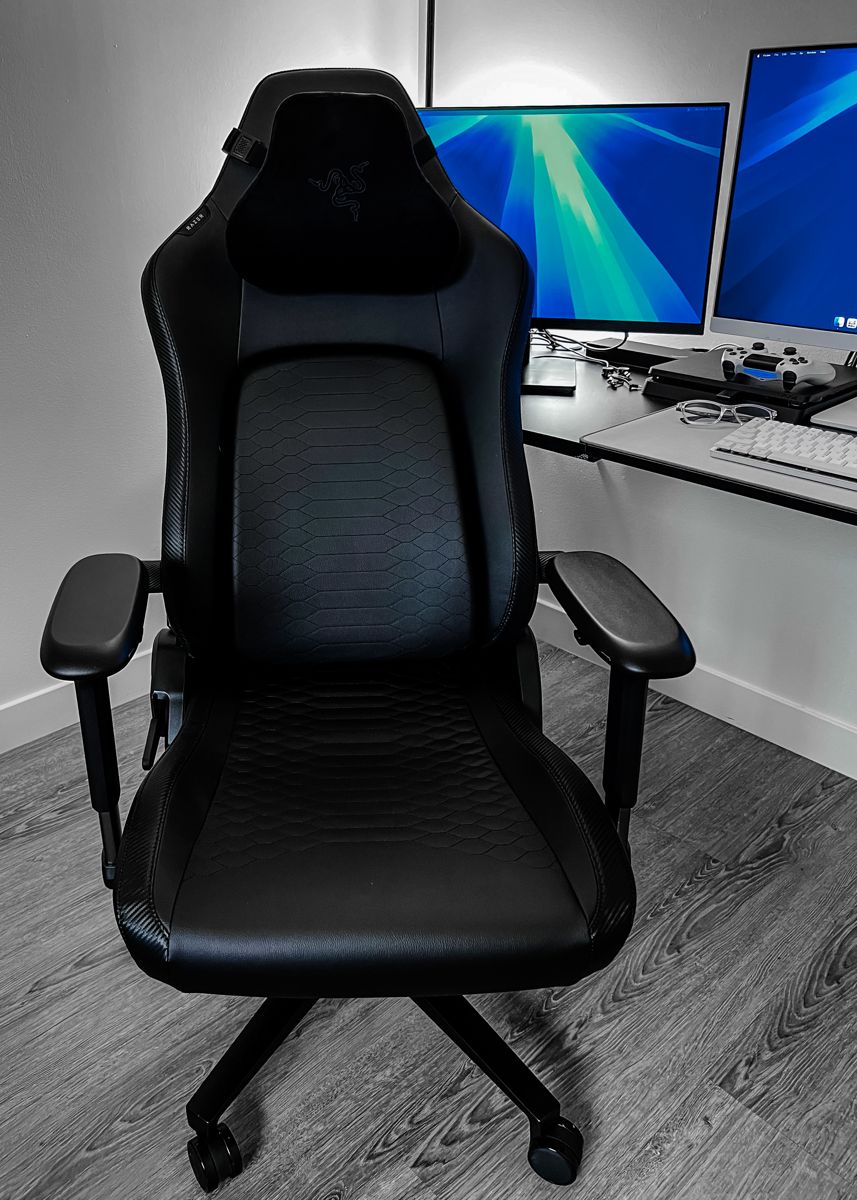
The Razer Iskur V2
Monitors
Next up was the monitor. I went with the BenQ GW3290QT, a 31.5-inch monitor. Apart from the clean design, one of the key reasons I chose it was its M-Book and Coding modes. M-Book mode is designed to make the monitor’s colours look closer to a connected MacBook’s screen. Its eye-care features, like flicker-free and low blue light, were a nice bonus too.
My plan was to get a second BenQ and use it in vertical mode, something I’m used to at work. But once I saw how large the BenQ looked on my desk, I dropped that idea. Instead, I reused my old LG 27MP500, a 27-inch monitor I had been planning to sell. It was the first monitor I bought after moving to Canada. Unfortunately, it doesn’t rotate, but for now that’s not a dealbreaker. Maybe someday I’ll get the BenQ’s 27-inch sibling, the GW2790QT, and use that one vertically.
To connect both monitors, I used a Lenovo ThinkPad Hybrid USB-C with USB-A Dock. It supports DisplayLink, which lets me connect multiple displays over USB. The BenQ connects over DisplayPort and the LG over HDMI, and the webcam plugs into the dock as well.
Switching Between Laptops
To switch between the laptops, I use the Alxum bi-directional USB-C KVM switch, which has a button on top. Both laptops sit on a UGREEN dual-slot vertical laptop stand with their lids closed, since I don’t need a third display. I tuck them behind the monitor, so they’re not very visible when I’m sitting, but they’re easy to grab if I want to take them with me.
Both laptops connect to the KVM switch, the MacBook with an Anker Thunderbolt 4 cable, and the switch connects to the dock. The switch can pass power through, but only to the laptop that’s active. I didn’t want the other one to run out of battery, so each laptop has its own charger.
The keyboard and mouse don’t go through the dock at all. Both are paired with each laptop over Bluetooth, and I switch them using the button on each one.
Here’s how it all connects:
    flowchart TB
    macpower["Anker 67W<br>charger"] -- power --> mac["MacBook Pro 2017<br>(personal)"]
    dellpower["Dell 165W<br>charger"] -- power --> dell["Dell Precision 5680<br>(work)"]

    subgraph input["Keyboard and mouse"]
        kb["MX Mechanical<br>Mini"]
        mouse["MX Master<br>3S"]
    end

    input -. Bluetooth .- mac
    input -. Bluetooth .- dell

    mac -- USB-C --- kvm["Alxum KVM switch"]
    dell -- USB-C --- kvm
    kvm -- USB-C --- dock["ThinkPad Hybrid<br>USB-C Dock"]

    dock -- DisplayPort --- benq["BenQ GW3290QT<br>monitor"]
    dock -- HDMI --- lg["LG 27MP500<br>monitor"]
    benq -- HDMI --- ps4["PS4 Slim"]

    subgraph cam["Poly Studio P5 webcam"]
        dongle["Poly Bluetooth dongle<br>(in the USB-A port)"]
    end

    dock -- USB --- cam
    dongle -. Bluetooth .- headset["Poly Voyager<br>Focus 2"]
How everything connects
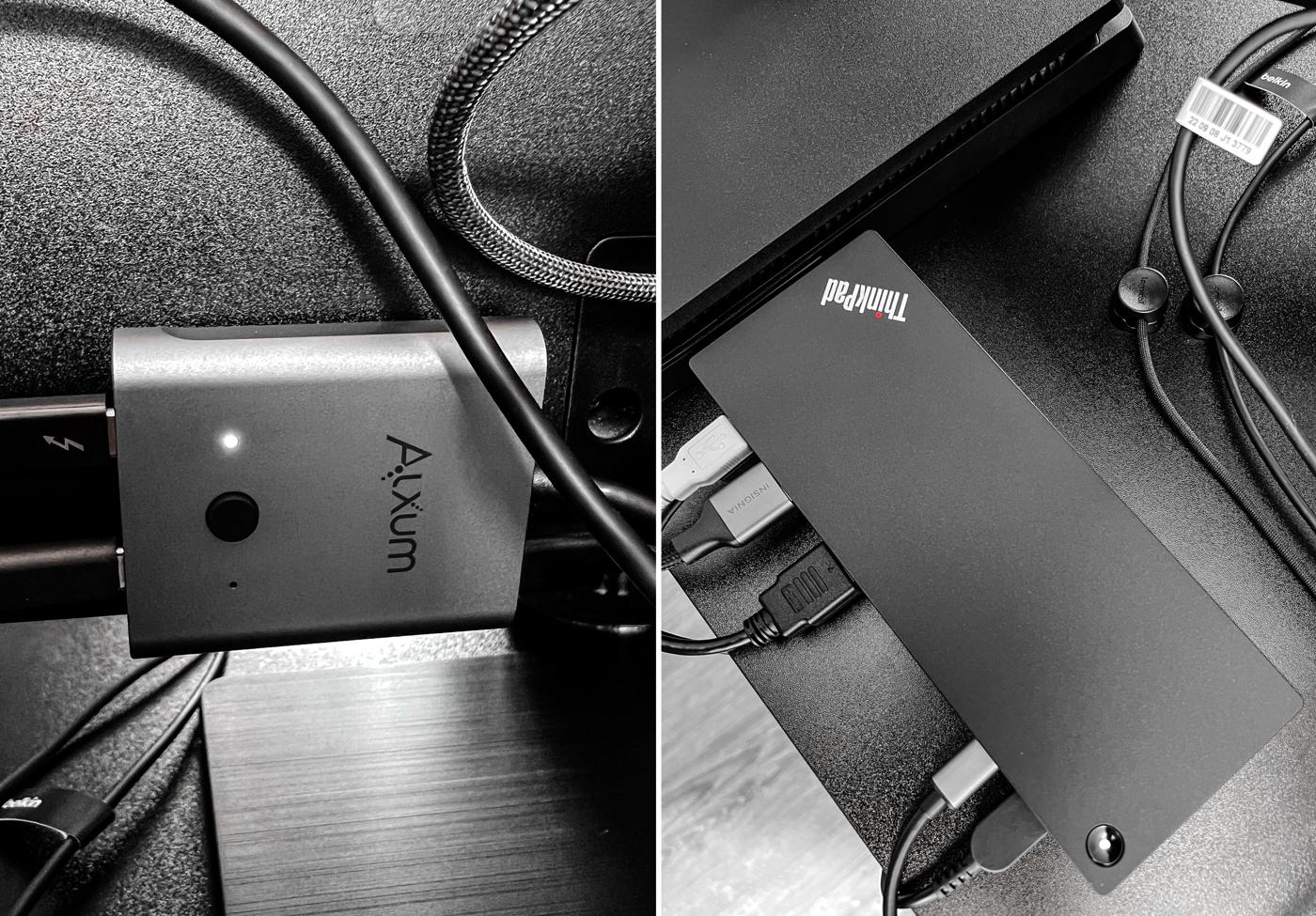
The Alxum KVM switch (left) and the ThinkPad dock (right)
Keyboard, Mouse and Webcam
I sold my Keychron K3 Pro and switched to the Logitech MX Mechanical Mini for Mac in Pale Gray. I like this one a lot better. The Keychron had a physical switch for Windows and macOS, but with this one, I don’t have to change anything when I switch laptops. It just works. I also don’t seem to need a palm rest, which was a must with the Keychron.
I also sold my Logitech MX Master 3 for Mac and got the MX Master 3S for Mac in Pale Gray. It’s only a subtle upgrade, but it got the colour right for this setup.
Both the keyboard and mouse sit on a Logitech Studio desk mat in Mid Grey.
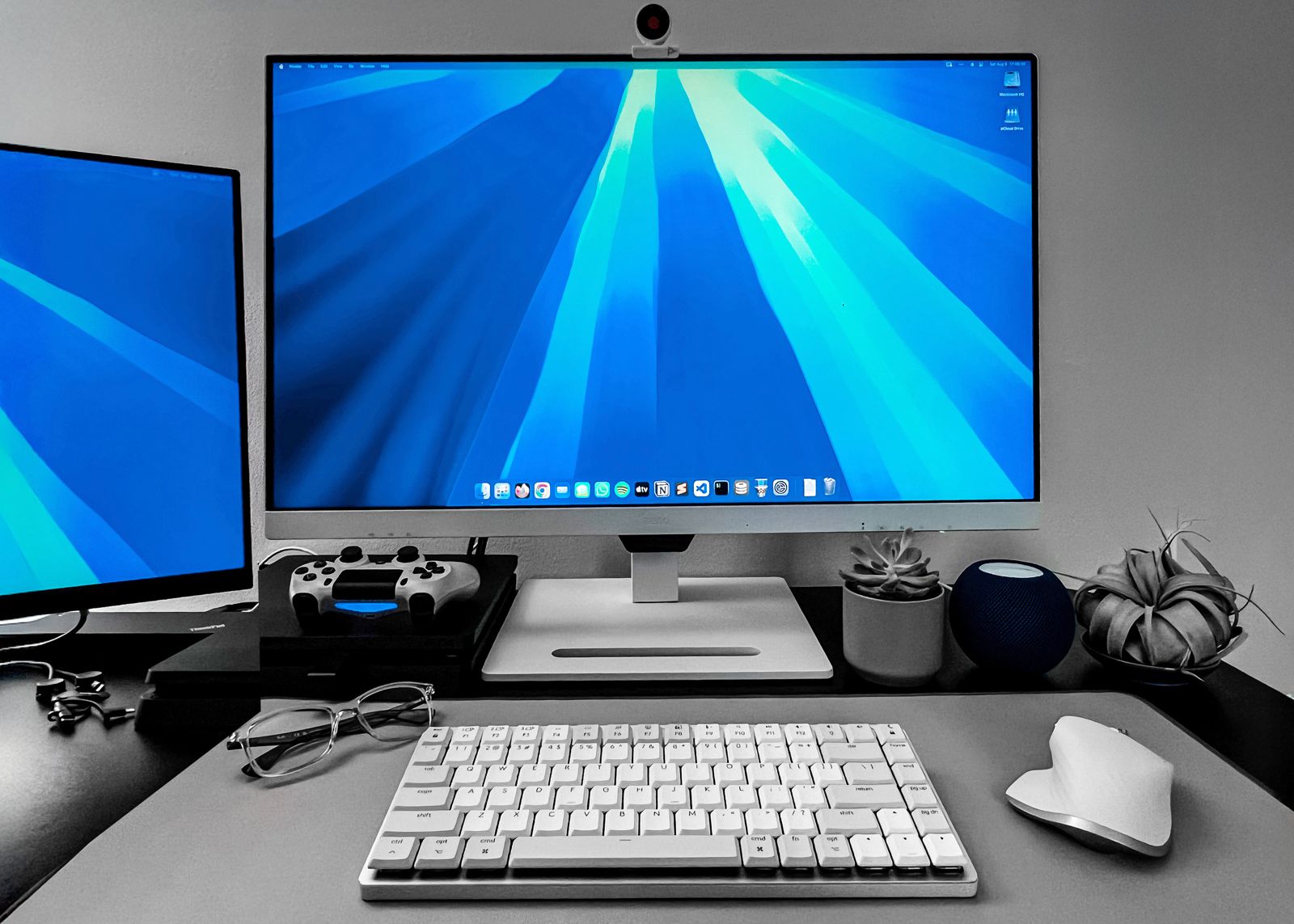
The MX Mechanical Mini and MX Master 3S on the Logitech desk mat
For video calls at work, I got the Poly Studio P5 webcam. I don’t have much experience with external webcams, since I only used the MacBook camera before, but I like the video quality. It’s a bit better than I like, as a camera-shy guy.
The webcam has a hidden USB-A port on the back, where I plugged in the Bluetooth receiver for my Poly Voyager Focus 2 headset. It comes with a desktop charging stand, which I connected to the dock as well.
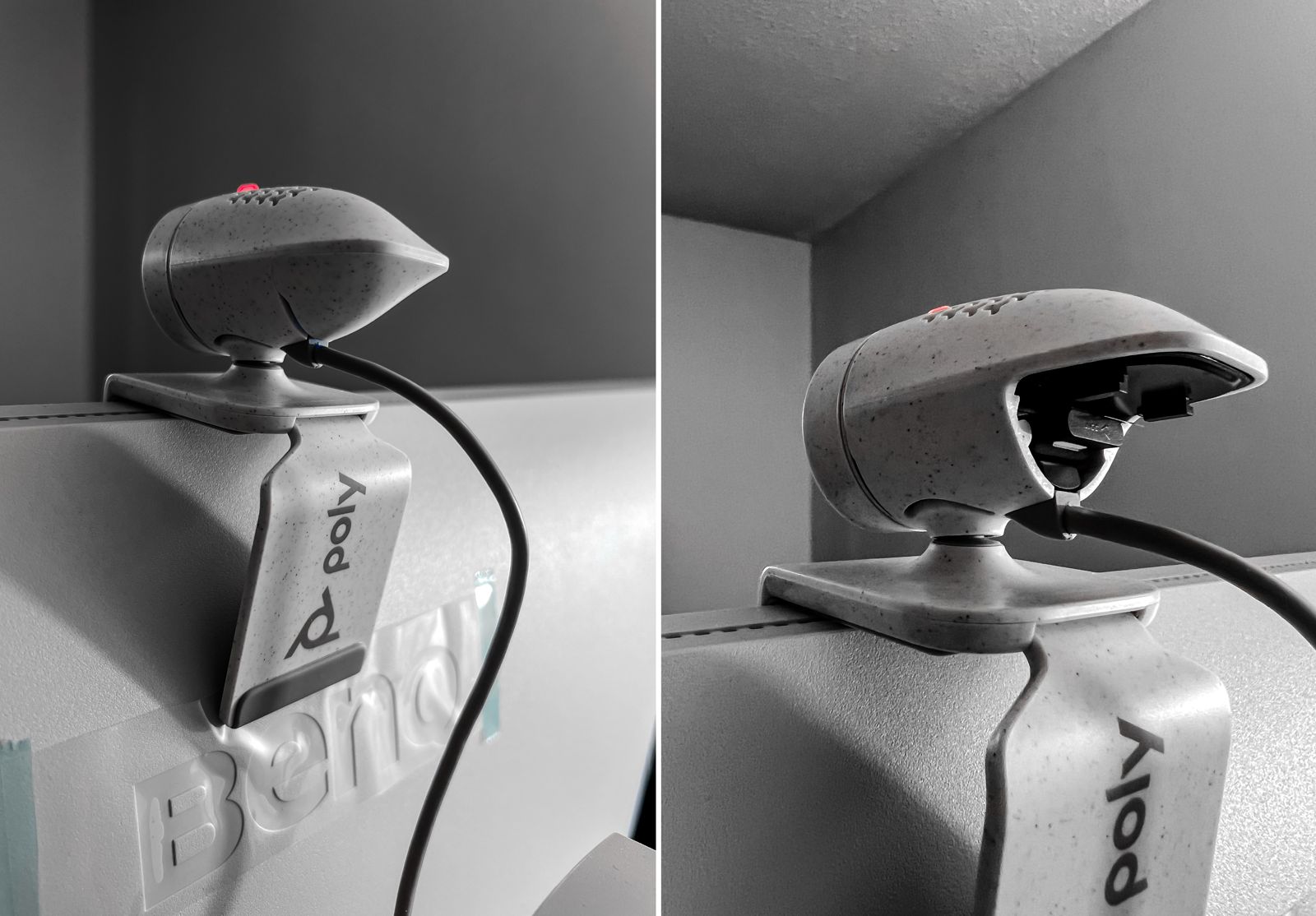
The Poly Studio P5 on top of the BenQ
Audio and Everything Else
I’ve been using a HomePod mini for a couple of years now, and I have a love-hate relationship with it. I love it when it works perfectly. I mostly use it for calls or as the audio output for my MacBook. It sits on the right side of the monitor, for lack of a better place, plugged into the power strip with its bulky 20W charger.
I also brought my PS4 Slim from the living room and put it on the desk. It connects straight to the BenQ over HDMI, without going through the dock. On the 43-inch TV in the living room, I often find in-game text hard to read from the couch. Besides, the Razer is a gaming chair, so it feels only right to game in it. The desk has a headphone stand, where my PlayStation Platinum Wireless Headset lives.
For my phone, I went with the BenQ Yogi Pad (GC01), an accessory made for this monitor. It sits on the monitor’s base, holds the phone on its side and keeps the cable tidy. I couldn’t find it in Canada, so a friend had to ship it from the US. Since then, I’ve barely used my white Lamical phone stand. The phone charges with a Beats Lightning cable, and there’s also a Belkin BoostCharge Universal Cable for charging things like my keyboard and mouse. Both plug into the USB ports on my Anker 2,100J surge protector power strip.
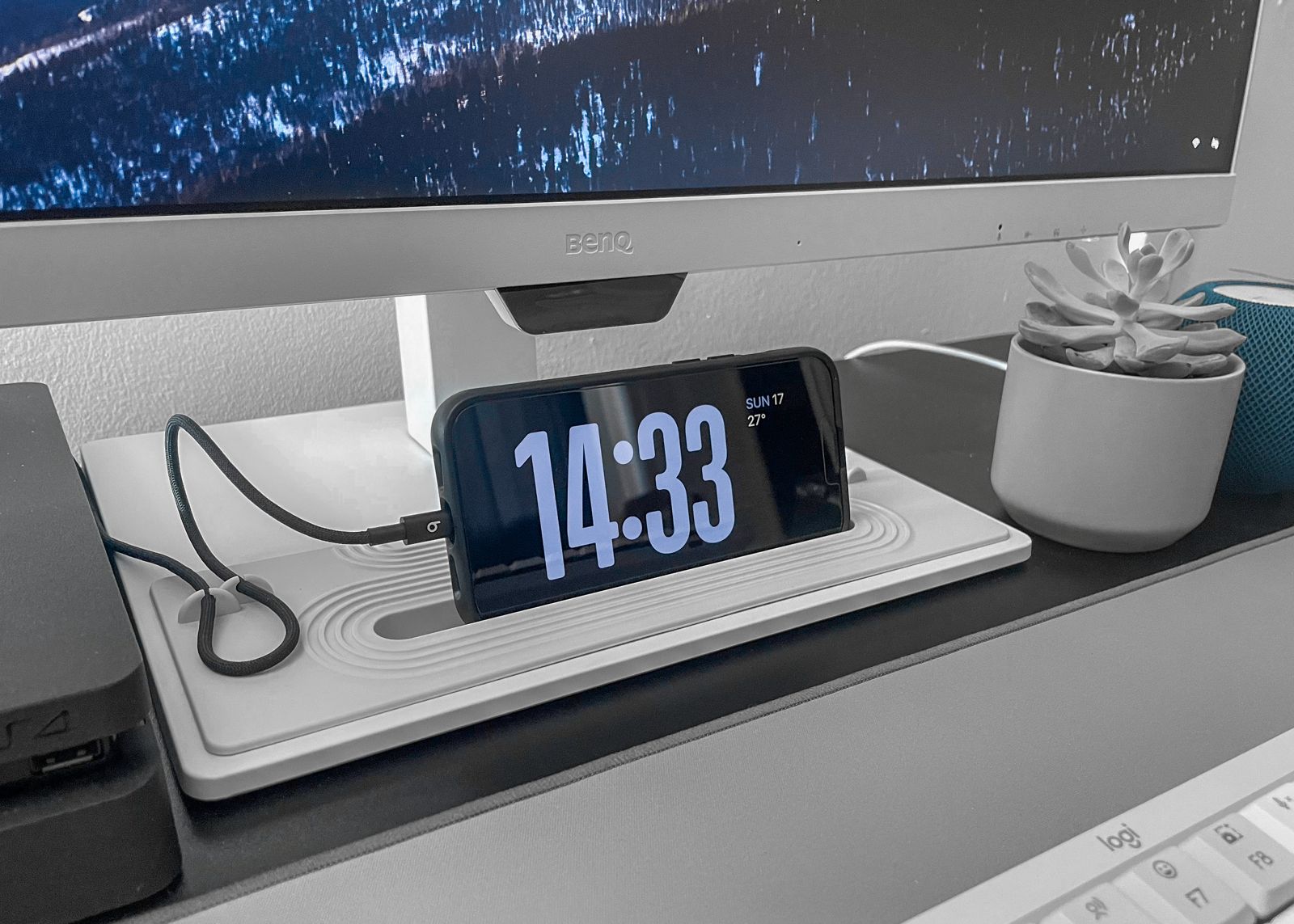
My phone on the BenQ Yogi Pad, right under the monitor
Cable Management
Since this is a standing desk, all the cables need to move with it. I got a COCIVIVRE under-desk cable management tray. I tied the work laptop’s charger and the dock’s power adapter to its clamp, so their weight doesn’t bend the tray where the power strip sits. My work laptop is a Dell Precision 5680 with a dedicated NVIDIA GPU. It’s power hungry, and its charger is 165W, while the KVM switch can only pass through up to 100W.
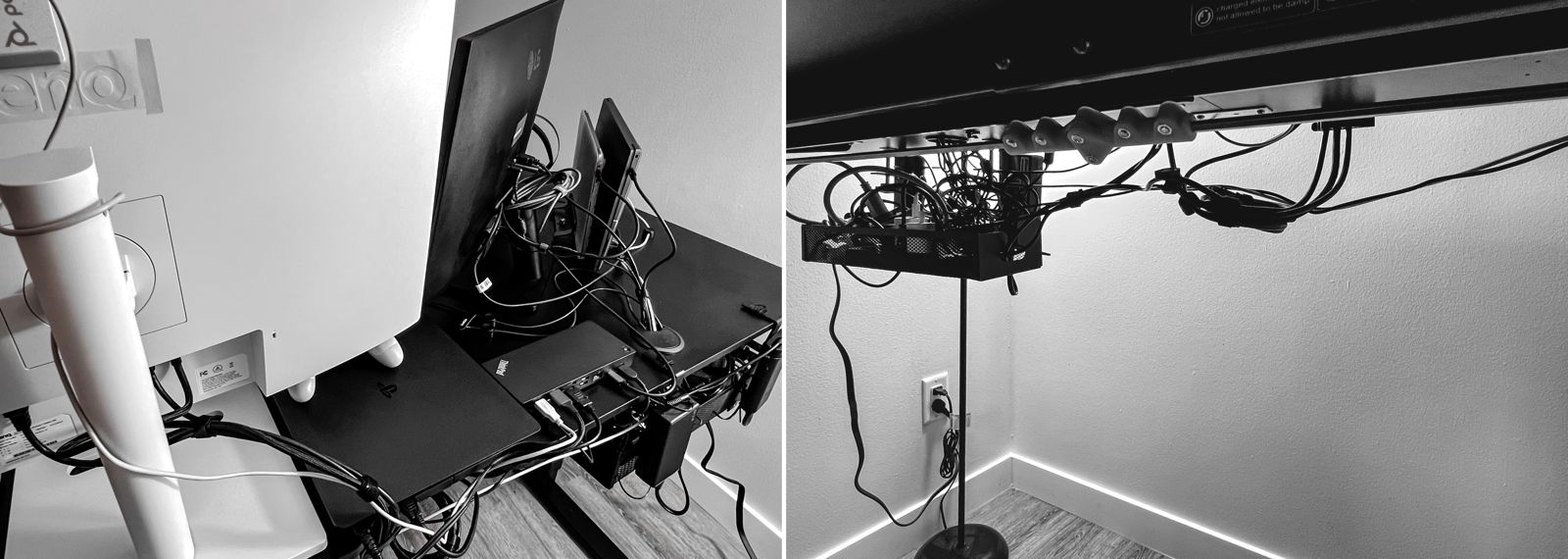
Cables tucked away in the under-desk tray
All the power cords, including the one for the standing desk itself, go to the power strip. As you can imagine, there isn’t much room once you have a few big chargers. So instead of Apple’s charger, I got an Anker 67W charger for my MacBook, which needs 61W. It’s pretty small, thanks to GaN.
A Bit of Green
I always wanted some plants on my desk. But as you can see, there are already too many things here. I also have a cat, Rio, so I went with a terrarium he can’t easily get into. I’ve always been fascinated by the idea of a tiny ecosystem living in a glass jar anyway. Next to the HomePod mini, I added a small succulent and an air plant. Not all succulents are safe for cats, so I checked with the seller before buying them. I’m a beginner when it comes to plants, so we’ll see how they do.
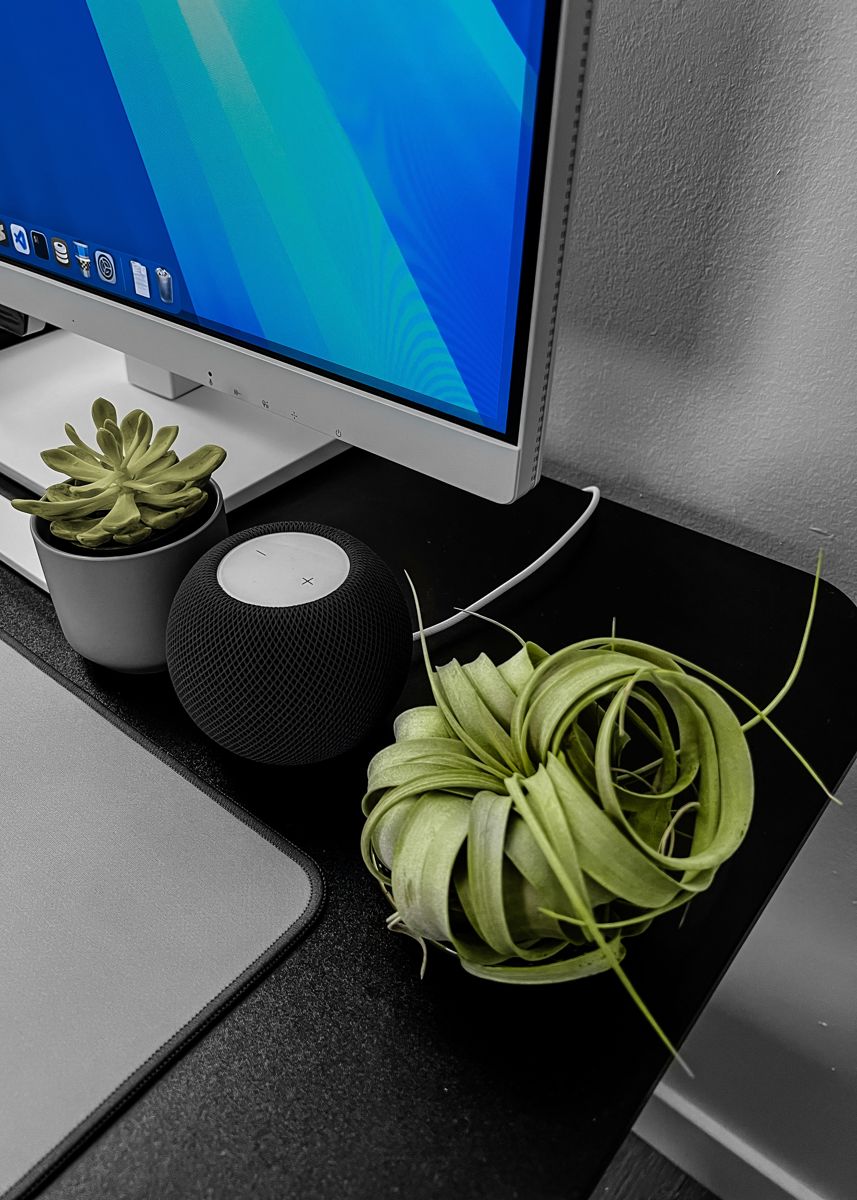
A succulent, the HomePod mini and an air plant
What’s Changed Since
Everything above describes the setup as it was in 2025. Here’s what’s different now.
A New Apartment
In May 2026, we moved to a new place. The desk setup moved over as it was. I just don’t have new photos yet.
The Mouse
The Pale Gray MX Master 3S in the photos started turning yellowish surprisingly fast, and I’m not the only one who noticed.45 So much for getting the colour right. I replaced it with the same mouse in Space Gray. Same mouse, just in a colour that doesn’t show its age.
The Plants
Sadly, none of the plants made it. I’m still a beginner, clearly. For now, I’ve switched to a few small fake plants from IKEA. So far, they’re doing great. Someday, I’ll give real plants another try.
The Phone Charger
With my old iPhone, the Lightning cable charged from the power strip’s USB-C port, and the iPhone kept warning me that it was charging slowly. That port only goes up to 20W, and the strip’s USB ports share just 15W when more than one is in use.
When I got an iPhone 18 Pro, I swapped the Lightning cable for a USB-C one and plugged it into an Anker Zolo 30W charger instead. No more warnings.
The iPhone 18 Pro’s camera plateau doesn’t sit well in the Yogi Pad’s slot, though, so these days the phone mostly lives on the Lamical stand instead.
The PlayStation
The PS4 isn’t on the desk anymore. I replaced it with a PS5 Pro, and we also upgraded to a 75-inch TV. Reading text from the couch isn’t a problem now, so the PS5 Pro lives under the TV in the living room. For long gaming sessions, I still use the Razer. I just roll it into the living room, since my office is right next door.
The MacBook
The MacBook in this setup was my 2017 MacBook Pro. In 2026, I finally replaced it with a 13-inch MacBook Air with the M5 chip, though it took two orders to get it.
My first order was in Midnight, but mine had issues with the finish. Apple offered to replace it with another Midnight at no extra cost, but I didn’t want to risk the same problem again, so I went for Silver instead. Switching colours, though, meant returning the laptop and placing a new order. By then, Apple had raised its prices, so the same configuration in Silver cost me about C$500 more.
Apple’s customer service was great throughout. I just ended up paying extra to switch colours.
Not Perfect, but It Works
Both laptops stay closed on the stand and stay plugged in, so neither one runs out of battery. They share the monitors, keyboard, mouse, webcam and headset. Switching takes three button presses: one on the KVM switch, and one each on the keyboard and mouse. No unplugging anything.
It still isn’t my dream setup. I’d like less clutter and better cable management. But with the black-and-white look, a chair I actually like and a bit of green, it’s a desk I enjoy sitting at. More importantly, switching laptops is no longer a reason to leave my MacBook untouched after work.
The Full List
Here’s everything on the desk as it is today.
Desk and chair
- MotionGrey Ergo2 L-shaped standing desk (63 × 24 inches, black)
- Razer Iskur V2
Laptops and switching
- 13-inch MacBook Air M5 (previously a 2017 MacBook Pro)
- Dell Precision 5680 (work)
- Alxum bi-directional USB-C KVM switch
- Lenovo ThinkPad Hybrid USB-C with USB-A Dock
- UGREEN dual-slot vertical laptop stand
- Anker Thunderbolt 4 cable
Monitors
- BenQ GW3290QT
- LG 27MP500
- BenQ Yogi Pad (GC01)
Keyboard, mouse and audio
- Logitech MX Mechanical Mini for Mac (Pale Gray)
- Logitech MX Master 3S for Mac (Space Gray, previously Pale Gray)
- Logitech Studio desk mat (Mid Grey)
- Poly Studio P5 webcam
- Poly Voyager Focus 2 headset
- HomePod mini
Power and cables
- Anker 2,100J surge protector power strip
- Anker 67W charger
- Anker Zolo 30W charger
- Belkin BoostCharge Universal Cable
- Lamical phone stand
- COCIVIVRE under-desk cable management tray