
Introduction
For years, this blog lived on an Azure virtual machine. I never set up a deployment pipeline for it. Every time I published a post, I built the site with Hugo on my laptop and copied the files over to the VM, where a web server served them.
Luckily, I didn’t publish very often, so it was never much of a chore. Looking at my archive, my lack of posting might have been the most efficient part of the whole setup.
Still, it meant a manual step for every post, and a server to look after just to serve a bunch of static HTML files.
A static blog didn’t need a VM at all. Around the same time, I bought ayonkhan.ca and decided to retire ayonkhan.me. I live in Canada now, so a .ca domain felt like a better fit than .me, and I didn’t want to keep paying for both. Since I had to touch everything anyway, I figured it was a good time to move the blog too.
I wanted one thing out of this: less to maintain. Here’s how the move went.
Choosing Where to Host It
First Thought: Stay on Azure
My first thought was to stay on Azure. It has a service built for exactly this: Azure Static Web Apps. You point it at a repo, it builds the site and serves it, with no VM involved. The free plan includes 100 GB of bandwidth a month and two custom domains, which is plenty for a blog like mine.1 It can even deploy from GitLab, through a pipeline you set up yourself.2
It would have worked fine. But before deciding, I wanted to see what else was out there.
How I Compared the Options
I didn’t need anything fancy. My list was short:
- Deploy from my GitLab repo, without moving it or maintaining a pipeline.
- A free plan with room to grow, just in case a post ever goes viral. A man can dream.
- Custom domains with HTTPS, without managing certificates.
- Less to maintain than what I had.
Here’s how the main options looked against that list when I checked:
| Azure Static Web Apps | GitHub Pages | Netlify | Cloudflare Pages | |
|---|---|---|---|---|
| Deploys from GitLab | Yes, with a pipeline I set up | No, needs a GitHub repo | Yes | Yes, built in |
| Free bandwidth | 100 GB a month1 | 100 GB a month, a soft limit3 | Comes out of a monthly pool of credits4 | Unlimited for static files5 |
| When you hit the limit | No overage on the free plan1 | You may be asked to reduce usage3 | Sites pause until next month4 | Not an issue for a static site |
| The catch for me | A pipeline to maintain, and a bandwidth cap | Repo would have to move | The free plan changed in 2025, and I’d rather not watch credits | None I found |
GitLab Pages deserves a mention too, since my repo is already there. It would work, but I’d have to write and maintain the CI pipeline myself, and my DNS would still be on Cloudflare. That’s two services to look after instead of one.
These limits change, so check the current numbers before you decide.
Why Cloudflare Pages Won
In the end, it wasn’t a hard choice:
- My DNS was already on Cloudflare. Adding a custom domain took a couple of clicks, because Cloudflare set up the records itself.
- It deploys from GitLab out of the box. Connect the account, pick the repo, and every push triggers a new build. No pipeline to write. After years of copying files to the VM by hand, that alone was worth it.
- Static files are free and unlimited. On both the free and paid plans, requests for static files aren’t counted or charged.5 A Hugo site is nothing but static files.
- The free build limits are generous. 500 builds a month, and up to 20,000 files per site.6 That’s far more than a personal blog like mine will ever need.
- There’s no server. Nothing to patch, no web server to configure, no certificates to renew.
Does Being a CDN Help?
Cloudflare isn’t just a host. It’s a CDN (Content Delivery Network): a network of data centres around the world, each keeping a copy of the site. When someone opens a page, it’s served from the data centre closest to them.
On my VM, every request went to a single server in Canada. That’s fine for someone reading in Vancouver. For someone in Dhaka, every page, image and stylesheet had to travel halfway around the world and back.
Being on a CDN also brings a few things I’d otherwise have to handle myself:
- HTTPS certificates are issued and renewed automatically.
- Traffic spikes are spread across Cloudflare’s network, instead of all landing on a single server.
- Protection from attacks, like floods of junk traffic, comes with the network.
To be fair, Azure Static Web Apps and Netlify also serve sites from multiple locations, so this isn’t unique to Cloudflare. And for a small blog with small pages, the speed difference won’t be dramatic. For me, the bigger win is simply not running the blog on a VM anymore.
Setting Up the Project
In the Cloudflare dashboard, I created a new Pages project, connected my GitLab account, and picked the blog repo. Then Cloudflare asks for the build settings. Here’s what I used:
| Setting | Value |
|---|---|
| Build command | hugo --gc --minify |
| Build output directory | public |
| Production branch | main |
| Environment variable | HUGO_VERSION = 0.165.0 |
--minify shrinks the HTML, CSS and JavaScript Hugo generates, so pages are a little smaller to download. --gc cleans up cache files Hugo no longer needs after the build.
The environment variable is the one that matters. Without it, Cloudflare builds the site with whatever Hugo version its build image comes with, which may be older than you think. That’s a real problem for PaperMod, the Hugo theme this blog uses. Its latest version needs Hugo v0.158.0 or newer and stops the build otherwise. I wrote about that upgrade in my previous post. Setting HUGO_VERSION to the same version I use locally means Cloudflare builds exactly what I tested.
My theme is a Git submodule pointing to my fork of PaperMod. Cloudflare Pages pulls submodules during the build, so the theme came along without any extra setup. The fork is public, which keeps things simple.
The first build worked right away, and so has every one since. Each push to main shows up in the Deployments tab with its commit message, and each deployment gets its own preview URL on pages.dev. If something ever goes wrong, I can see exactly which commit caused it.
Here’s the log from that very first deploy. Hugo built all 372 pages in under a third of a second, and Cloudflare uploaded the whole site in less than three:
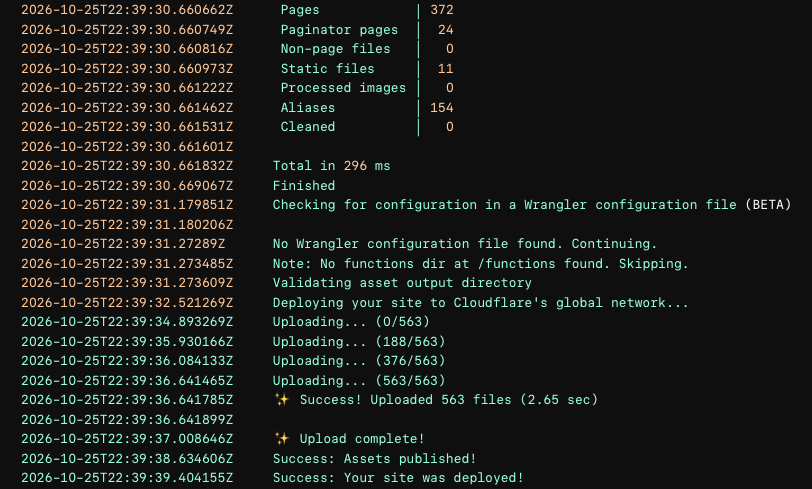
The build log from the first deploy on Cloudflare Pages
The New Domain
I wanted www.ayonkhan.ca to be the main address for the blog, with the bare ayonkhan.ca redirecting to it. In the Pages project, I added www.ayonkhan.ca as a custom domain. Because the domain was already on Cloudflare, it set up the DNS records for me. The bare domain doesn’t need to be part of the Pages project, since all it does is redirect.
For the redirects, I used Cloudflare’s Redirect Rules, which you’ll find under Rules in each domain’s dashboard. They run on Cloudflare’s network before a request ever reaches the site, so there’s nothing to add to the blog itself.
Bare Domain to www
The first rule sends ayonkhan.ca to www.ayonkhan.ca. A wildcard pattern is enough for this:
| Setting | Value |
|---|---|
| Request URL | https://ayonkhan.ca/* |
| Target URL | https://www.ayonkhan.ca/${1} |
| Status code | 301 (Permanent Redirect) |
| Preserve query string | On |
The * captures everything after the domain, and ${1} puts it back in the new URL. So ayonkhan.ca/posts/ goes to www.ayonkhan.ca/posts/, not just to the home page.
Old Domain to New Domain
ayonkhan.me is on Cloudflare too, so the second rule lives there. It sends both ayonkhan.me and www.ayonkhan.me to the new domain. This time I used a custom filter expression, because it has to match two hostnames:
(http.host in {"ayonkhan.me" "www.ayonkhan.me"})
And a dynamic target that keeps the path:
concat("https://www.ayonkhan.ca", http.request.uri.path)
Again, it’s a 301 with the query string preserved. Every old link, like ayonkhan.me/posts/2021/08/..., lands on the same post on the new domain.
A 301 tells browsers and search engines the move is permanent, so search engines move the old pages over to the new addresses instead of treating them as two separate sites.
These rules only work while I still own ayonkhan.me, though. Once it expires, they’re gone. That’s why the cleanup later in this post mattered.
Updating Hugo
On the Hugo side, I updated baseURL in config.yml:
baseURL: "https://www.ayonkhan.ca/"
Hugo uses baseURL to build every absolute link on the site, so this one line takes care of most of the domain change.
Most, but not all.
Moving the Images
My blog images used to live in a Backblaze B2 bucket, served through uploads.ayonkhan.me. It worked fine, but it was one more service to maintain, and it was tied to the old domain.
When I checked, all the images together were only about 14 MB. That’s nothing for a Git repo, so I moved them into the blog itself, under static/images. Hugo copies everything in static into the final site as it is, so an image at static/images/posts/example/photo.jpg ends up at /images/posts/example/photo.jpg.
I already had a local copy of the images, so I copied the posts folder into static/images/, keeping its folder structure intact.
Then every post that used an image needed its links updated, from uploads.ayonkhan.me to the new /images/ paths. Claude helped me put the commands together, which saved me from fighting with the escaping myself.
Before changing anything, I checked that every image the site links to had actually been copied:
grep -rIhoE 'https://uploads\.ayonkhan\.me/file/baquet/[^ )"'"'"'>]+' content layouts data config.yml 2>/dev/null \
  | sort -u | sed 's#https://uploads.ayonkhan.me/file/baquet/##' \
  | while read f; do [ -f "static/images/$f" ] || echo "MISSING: $f"; done
It finds every old image URL in the site, strips the domain to get the file path, and prints any file that doesn’t exist under static/images. The strange-looking "'"'"' is just how you put a single quote inside a single-quoted string in the shell. If it prints nothing, every image is there.
Then a quick count of the files that still had old links:
grep -rIl 'uploads\.ayonkhan\.me/file/baquet/' content layouts data config.yml 2>/dev/null | wc -l
And finally, the replacement itself:
grep -rIl 'uploads\.ayonkhan\.me/file/baquet/' content layouts data config.yml 2>/dev/null \
  | xargs sed -i '' 's#https://uploads\.ayonkhan\.me/file/baquet/#/images/#g'
This finds every file with an old link and swaps the old address for /images/, so https://uploads.ayonkhan.me/file/baquet/posts/example/photo.jpg becomes /images/posts/example/photo.jpg. The empty '' after -i is a macOS thing. On Linux, use sed -i without it.
Running the count again afterwards is a quick way to confirm nothing was missed.
Now the images deploy together with the posts. One less service to manage, and one less thing to break.
Cleaning Up the Old Domain
Changing baseURL didn’t catch everything. Some old links were hiding in places I didn’t expect.
Old Canonical URLs
A canonical URL tells search engines which address is the “real” one for a page. Some of my posts set it by hand in their front matter:
canonicalURL: "https://www.ayonkhan.me/posts/2021/08/never-trust-float-and-double-with-currency-in-java/"
So even on the new domain, these posts kept telling search engines that their real home was ayonkhan.me. Once that domain expires, they’d be pointing to a dead site.
A quick search showed how many posts had this:
grep -rl "canonicalURL" content
Exactly 50 of them. Before removing anything, I listed where they all pointed:
grep -rh "canonicalURL" content | sed 's#/[^/]*$##' | sort | uniq -c
I went through the list, and every single one pointed to its own page on ayonkhan.me, so it was safe to remove them all. PaperMod generates the correct canonical URL on its own when the line isn’t there.
grep -rl "canonicalURL" content | xargs sed -i '' '/^canonicalURL:/d'
Same as before, drop the '' after -i on Linux.
Old Links in giscus Discussions
My blog comments use giscus, which stores each post’s comments as a GitHub Discussion. Since giscus matches posts by their path, not the full URL, all my comments showed up on the new domain without any changes.
There was one leftover, though. When giscus creates a discussion, it writes the page’s URL into the description. So all my discussions still linked to ayonkhan.me. Readers on the blog never see this, but anyone browsing the Discussions tab on GitHub would eventually hit a dead link.
Editing them all by hand didn’t sound fun. I asked Claude for help again, and within seconds it had written a script using the GitHub CLI. First, a dry run to see which discussions had the old link:
gh api graphql --paginate -f query='query($endCursor: String) { repository(owner: "ayonkhan", name: "ayonkhan.ca") { discussions(first: 100, after: $endCursor) { nodes { number title body } pageInfo { hasNextPage endCursor } } } }' --jq '.data.repository.discussions.nodes[] | select(.body | contains("https://www.ayonkhan.me/")) | "#\(.number) \(.title)"'
Then a small script to replace the links:
#!/bin/bash
OLD='https://www.ayonkhan.me/'
NEW='https://www.ayonkhan.ca/'

ids=$(gh api graphql --paginate -f query='
  query($endCursor: String) {
    repository(owner: "ayonkhan", name: "ayonkhan.ca") {
      discussions(first: 100, after: $endCursor) {
        nodes { id body }
        pageInfo { hasNextPage endCursor }
      }
    }
  }' --jq ".data.repository.discussions.nodes[] | select(.body | contains(\"$OLD\")) | .id")

for id in $ids; do
  body=$(gh api graphql -f query='
    query($id: ID!) { node(id: $id) { ... on Discussion { body } } }
  ' -f id="$id" --jq '.data.node.body')

  new_body="${body//"$OLD"/$NEW}"

  gh api graphql -f query='
    mutation($id: ID!, $body: String!) {
      updateDiscussion(input: { discussionId: $id, body: $body }) {
        discussion { number }
      }
    }
  ' -f id="$id" -f body="$new_body" --jq '"Updated #\(.data.updateDiscussion.discussion.number)"'
done
Run it with the pager turned off. Otherwise, gh opens its output in a pager, the same one git log uses, so the script stops after each discussion it updates and waits for you to close the pager:
GH_PAGER=cat bash fix-discussion-links.sh
A side effect: GitHub sorts discussions by latest activity, so after the update they all showed up in the order the script edited them. Nothing actually changed, and you can switch the sort to Date created if it bothers you. In hindsight, the script could have edited them from the least to the most recently active, so they’d end up back in their original order.
Even My Old Blogger Blog
Years ago, before ayonkhan.me, this blog lived on Blogger, and that old blog still exists. Its template is just a redirect: anyone who opens an old link gets sent to the same post on my site. It was still sending people to ayonkhan.me, so it needed the new domain too.
That’s the thing about moving a blog more than once. Every old home becomes a forwarding address you have to keep up to date. Here’s hoping this move is the last one.
Conclusion
Looking back, connecting the repo and adding the domain took very little time. The real work was hunting down everything that still pointed to the old domain: canonical URLs, image links, and comment threads I had forgotten existed. If you’re planning a similar move, search for your old domain before you switch. It’s much easier to fix things while the old domain still works.
Day to day, the difference is bigger than I expected. Publishing used to mean building the site and copying files to a VM. Now I push to GitLab, and the post is live a few minutes later. The old VM is gone, hosting costs me nothing, and the blog lives on a domain I plan to keep.
Now the only thing left to fix is how often I post.